
 Step 1: Open ThinkPenguin.com in a new tab and go to the networking and modems section to purchase a PenguinVPN 2.0 subscription if you don't already have one.
Step 2: If this is your first time signing up for our PenguinVPN services select the "Please give me a new username/key for this new subscription" in the "New account or extending a VPN Subscription?:" drop down box.

Step 3: At checkout you will need to select the VPN Protocol Credentials you'd like to receive.
Select the Wireguard option.

Step 4: When making a purchase you have to decide the length of service you'd like to pay for up front. The longer the subscription the less expensive it becomes on a monthly basis. There are no refunds or cancellations, but there is also no automatic renewal here either. You can choose to get a short subscription to try it out and come back and renew the subscription manually later if you like. Just make sure to note the expiration date and order # as we do not nag you about renewing when your subscription runs out. The service will simply stop working.
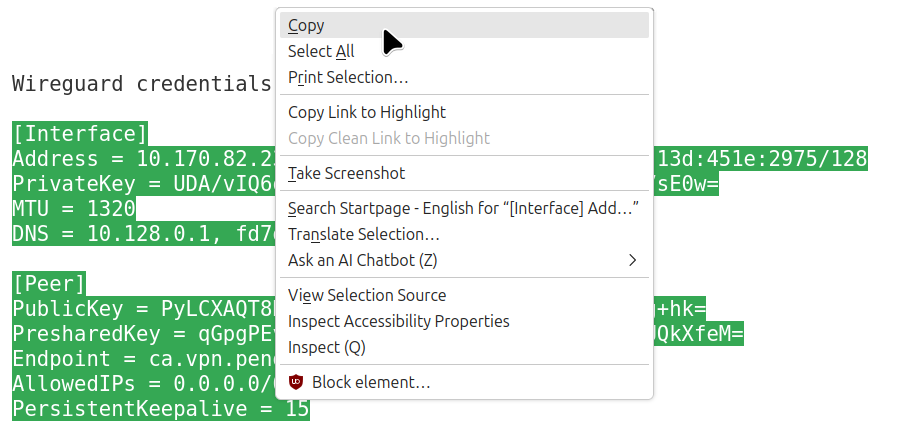
Step 5: You will get an email containing your PenguinVPN 2.0 Subscription Credentials. This may take some time. It's not instantaneous unfortunately. You'll need this to continue setting up the PenguinVPN 2.0 subscription.
Once the email arrives copy the interface and peer section.
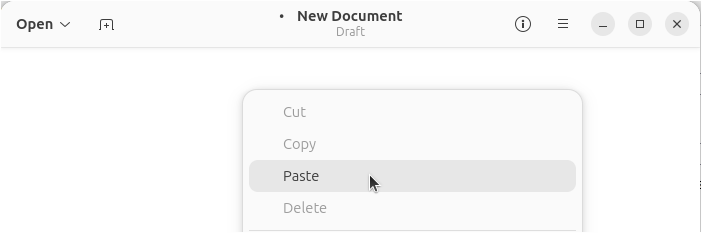
Step 6: In the top left corner click on the activities or menu/search button to bring up the search. Search for and open the text editor.

Right click somewhere in the main body of the text editor and select paste from the menu.
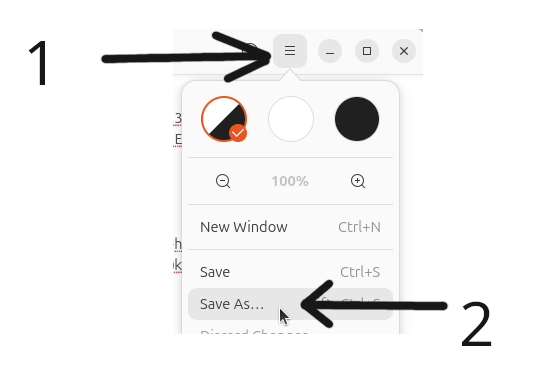
Step 7: Click the three lines in the top right corner of the text editor and select save as button.
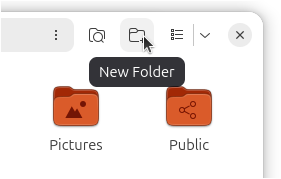
Step 8: Create a new folder by clicking the create new folder icon in the top right of the save window:
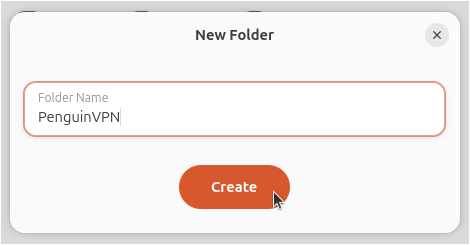
Step 9: Name it PenguinVPN and click the Create button to proceed.
Step 10: Double click the new PenguinVPN folder
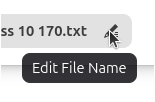
Step 11: Click the Edit button to give file new name
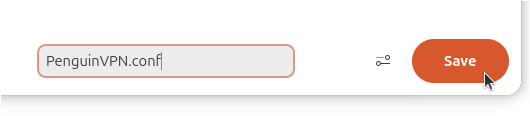
Step 12: Enter PenguinVPN.conf and click the save button
Step 13: In the top right corner click on the network/audio icon and select the cogwheel to open the system settings
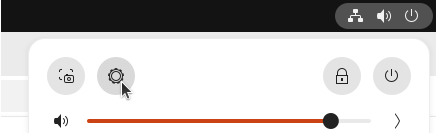
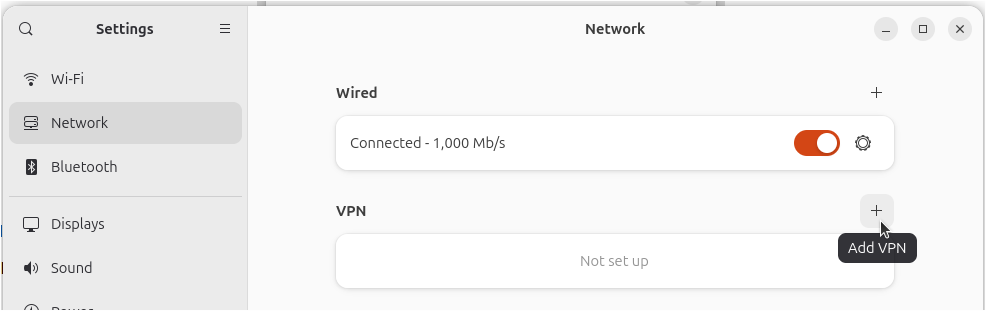
Step 14: Click on the network section on the left, then the + icon under the VPN section to add a VPN configuration
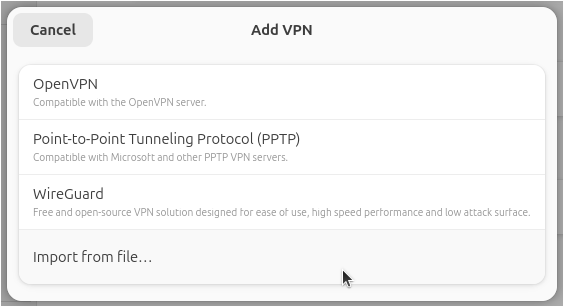
Step 15: Select the Import from file... menu option
Step 16: Double click on the PenguinVPN folder in your home directory to open the PenguinVPN folder
Step 17: Click on the PenguinVPN.conf file to select it
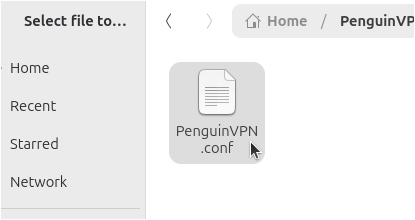
Step 18: Click the Open button
Step 19: Click the Add button
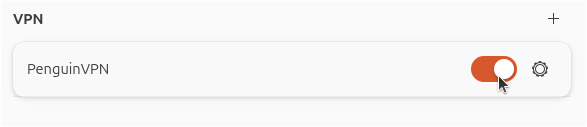
Step 20: Click the On button for PenguinVPN to connect
Step 21: Open a web browser and enter https://infosniper.net into the address bar and hit enter to check that your going through the VPN
