
To utilize our USB fingerprint reader (TPE-F4500) with Trisquel 12+ you will need to open a terminal and install a few packages. Then utilize a command to enroll your fingerprint. Afterward you can login to the system using just your fingerprint at the normal graphical login screen.
1. In the lower left corner click on the Trisquel logo / menu icon and go to Accessories and open the MATE Terminal
2. In the terminal enter the following command and hit enter:
sudo apt install fprintd libpam-fprintd
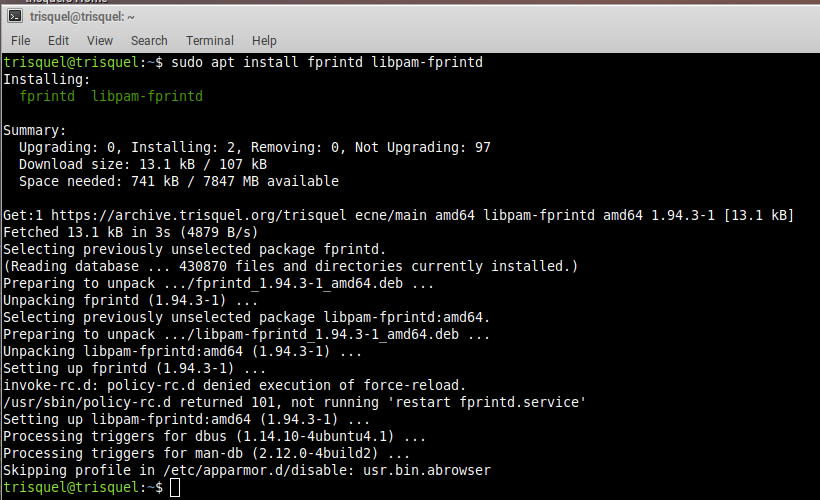
3. You will be prompted to enter your login password, do so and hit enter
4. It'll probably prompt to ask if you want to install these packages, press the y key and hit enter
5. Once these packages are installed configure the system to use the fingerprint reader by running the following command:
sudo pam-auth-update

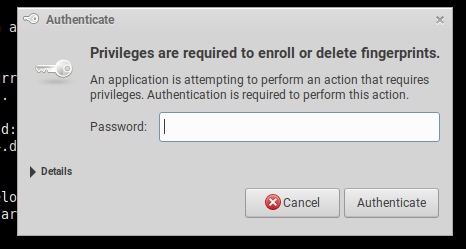
6. Enter your login password when prompted
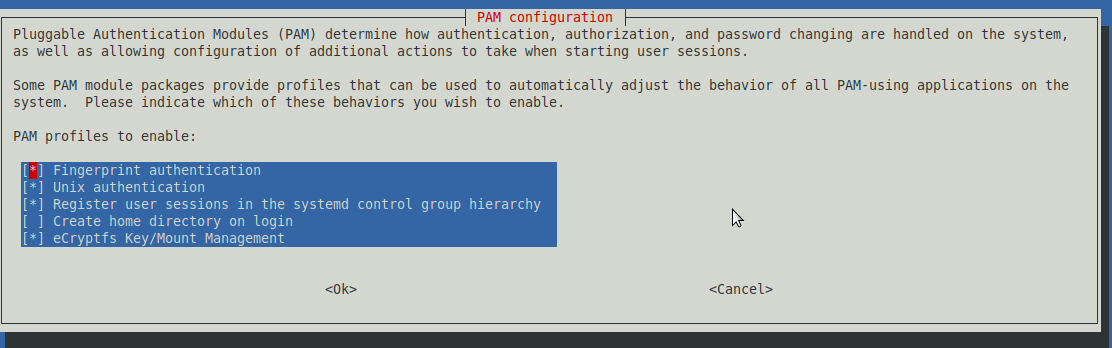
7. Select Fingerprint Authentication using your up and down arrow keys and the spacebar, then tab to select ok and hit enter
8. Enroll by entering the following command and hitting enter:
fprintd-enroll
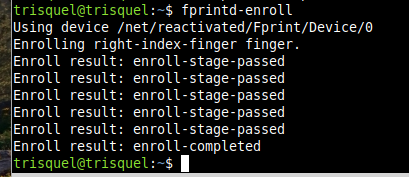
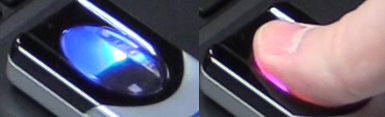
9. Plug in the USB fingerprint reader and the fingerpint reader sensor will go blue, press your finger against it to enroll and it will go red indicating success
10. You can now log out once done and try to login using your fingerprint